
Key Takeaways
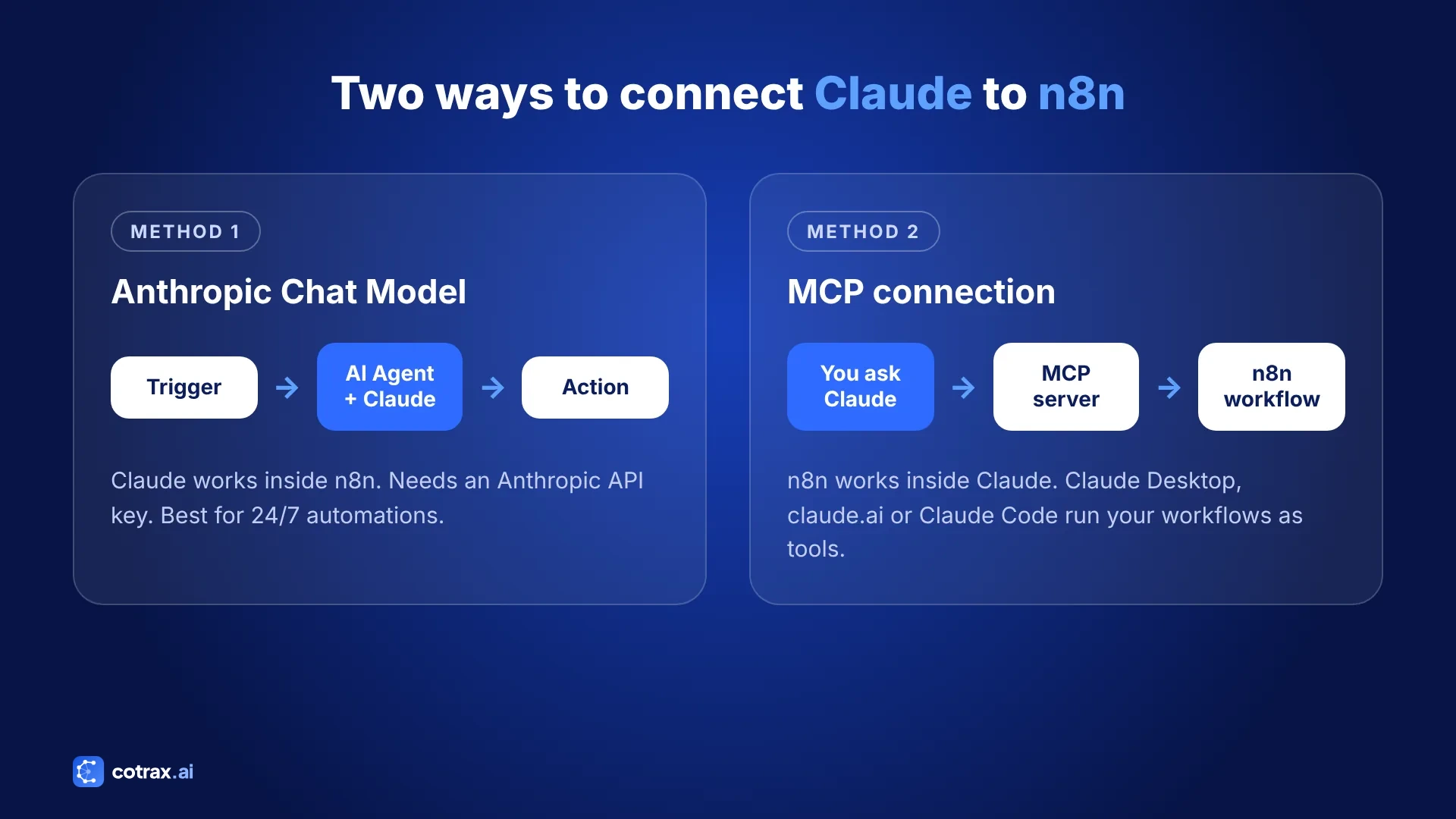
- There are two ways to connect Claude to n8n: the Anthropic Chat Model node (Claude inside n8n) and MCP (n8n inside Claude).
- For the first method, you only need an Anthropic API key from the Anthropic Console.
- The AI Agent node + Anthropic Chat Model is the fastest way to build a Claude-powered agent in n8n.
- With MCP, Claude Desktop, claude.ai and Claude Code can run your n8n workflows as tools.
- Always protect MCP endpoints with Bearer or header authentication; a hidden URL is not security.
- Start small, test in the editor, then publish to production.
You have a smart AI model on one side and a powerful automation tool on the other. The real magic starts when you join them. So if you are wondering how to connect Claude to n8n, you are in the right place.
Claude, built by Anthropic, is great at reading, writing and reasoning. Meanwhile, n8n is an open-source workflow automation platform that links hundreds of apps. Together, they give you AI agents that can read your emails, update your CRM, write reports and act on real data without you lifting a finger.
In this guide, the cotrax team shows you two ways to connect Claude to n8n. First, you will use Claude as the “brain” inside your n8n workflows. Second, you will let Claude call your n8n workflows through the Model Context Protocol (MCP). There is no heavy jargon here, just clear steps.
Why connect Claude to n8n?
On its own, Claude can only answer what you type into a chat box. For example, it cannot check your inbox, update a Google Sheet or post on Slack by itself. However, n8n fixes that gap.
In short, n8n gives Claude hands. First, it handles triggers, app connections and data flow. Claude, on the other hand, handles the thinking: summarizing, classifying, drafting and making decisions. As a result, you get a real AI agent, not just a chatbot. If you are new to AI, start with our guide to machine learning vs AI vs deep learning.
An AI model without tools is a brilliant advisor locked in a room. n8n opens the door.
cotrax.ai Editorial Team
Here is what you gain when you connect Claude to n8n:
- Less manual work: route leads, reply to tickets and clean data automatically.
- Better output quality: Claude writes clear, natural text and also follows long instructions well.
- Full control: n8n can be self-hosted, so your data can stay on your own server.
- Low code: you build most of it with drag-and-drop nodes, not hundreds of lines of code.
Two ways to connect Claude and n8n
First of all, pick the method that fits your goal. In addition, this quick table shows the main differences:
| Method 1: Anthropic Chat Model | Method 2: MCP | |
|---|---|---|
| Direction | Claude works inside n8n | n8n works inside Claude |
| Best for | Automated workflows that run 24/7 | Chatting with Claude and letting it trigger workflows |
| What you need | Anthropic API key | n8n with MCP enabled + a Claude app |
| Who starts it | A trigger (email, form, schedule) | You, by asking Claude in chat |
| Difficulty | Beginner | Intermediate |
In fact, many teams use both. Method 1 runs the background automations. Then Method 2 lets people on the team call those automations from a simple chat with Claude.
Method 1: Connect Claude to n8n with the Anthropic Chat Model
This is the most common way to connect Claude to n8n. Here, Claude becomes the language model that powers your workflow or AI agent.
What you need to connect Claude to n8n
- An n8n account (n8n Cloud or a self-hosted instance)
- An account on the Anthropic Console with API access
- A few dollars of API credit, because Claude API calls are billed per token
Step 1: Get your Anthropic API key
- First, log in to the Anthropic Console.
- Next, go to Settings → API Keys.
- Then click Create Key and give it a clear name, such as
n8n-integration. - Finally, copy the key right away and store it somewhere safe. After this, you will not see it again.
Step 2: Add Anthropic credentials in n8n
- First, open n8n and go to Credentials and click Add Credential.
- Next, search for Anthropic and select it.
- Then paste your key into the API Key field.
- Save. Then n8n will test the connection for you.
According to the official n8n docs, an API key is the only supported login method. Also, on n8n Cloud, some nodes let you pick “Use Gateway credits” instead of your own key, which is handy for quick tests.
Step 3: Build your first Claude AI agent in n8n
Now for the fun part. So let’s build a simple chat agent.
- First, create a new workflow.
- Then add a Chat Trigger node. As a result, you get a test chat window.
- Next, add an AI Agent node and connect it to the trigger.
- After that, under the AI Agent’s Chat Model slot, click + and choose Anthropic Chat Model.
- Then select your Anthropic credential and pick a Claude model from the list.
- (Optional) Add a Simple Memory node so the agent remembers earlier messages.
- (Optional) Add tools such as Gmail, Google Sheets or HTTP Request so Claude can take action.
- Finally, click Open Chat and send a test message.
If Claude replies, congratulations. You have managed to connect Claude to n8n, and your integration is live.
Want a ready-made Claude agent?
Tell us your use case and the cotrax team will help you plan your first n8n workflow.
Step 4: Write a strong system prompt
Inside the AI Agent node, open Options → System Message. This is where you tell Claude who it is and how to behave. For example:
You are a support assistant for cotrax. Answer in short, friendly sentences.
If a user asks about billing, use the "Search Invoices" tool before replying.
Never make up order numbers.
A clear system prompt is the single biggest factor in agent quality. So be specific about tone, limits and when to use each tool. Also, test your prompt on a few real examples before you go live.
The model is only as good as the instructions you give it. Treat your system prompt like a job description.
Anthropic node vs Anthropic Chat Model
n8n has two Claude-related nodes, and people often mix them up:
- Anthropic Chat Model is a sub-node. It plugs into the AI Agent, Basic LLM Chain and other AI nodes as their “brain”.
- Anthropic is a regular node. Use it for a single direct task, like “summarize this text”, without building a full agent.
In both cases, the nodes use the same Anthropic credential you created in Step 2.
Method 2: Connect Claude to n8n using MCP
The Model Context Protocol (MCP) is an open standard from Anthropic. In addition, it lets AI apps like Claude discover and use outside tools. With MCP, your n8n workflows show up inside Claude as tools it can run on request.
For instance, imagine typing “Add this lead to our CRM and send a welcome email” in Claude, and an n8n workflow does it for you. That is what this second way to connect Claude to n8n unlocks. There are two MCP options in n8n.
Option A: Instance-level MCP (easiest)
In short, this option exposes selected workflows from your whole n8n instance to Claude.
- In n8n, go to Settings → Instance-level MCP and turn on Enable MCP access. An owner or admin must do this.
- Next, open each workflow you want to share. Make sure it uses a supported trigger (Webhook, Schedule, Chat or Form) and is published.
- Then turn on Available in MCP for that workflow.
- After that, copy the Server URL. As a rule, it ends in
/mcp-server/http. - Finally, in Claude Desktop or claude.ai, go to Settings → Connectors → Add custom connector, paste the URL and approve the OAuth login.
Using Claude Code instead? Then run this in your terminal:
claude mcp add --transport http n8n <YOUR_N8N_MCP_URL>Note: a remote connector must be reachable from the internet. Therefore, a laptop-only n8n at localhost will not work with claude.ai.
Option B: MCP Server Trigger node (more control)
In contrast, this option turns a single workflow into an MCP server with the exact tools you choose.
- First, create a new workflow and add the MCP Server Trigger node.
- Next, connect the tool nodes you want Claude to use, such as Google Sheets, Gmail or a Custom n8n Workflow Tool.
- Then set Authentication to Bearer or Header auth.
- After that, give it a clean Path (for example
claude-tools). - Use the Test URL while building. Then publish the workflow to activate the Production URL.
To add it to Claude Desktop as a local server, edit claude_desktop_config.json like this:
{
  "mcpServers": {
    "n8n": {
      "command": "npx",
      "args": [
        "mcp-remote",
        "https://your-n8n-domain.com/mcp/claude-tools",
        "--header",
        "Authorization: Bearer ${AUTH_TOKEN}"
      ],
      "env": { "AUTH_TOKEN": "your-secret-token" }
    }
  }
}
Finally, restart Claude Desktop. You should now see your n8n tools listed in the chat.
MCP turns every workflow you have already built into a skill your AI assistant can use.
cotrax.ai Editorial Team
MCP limits to know
- n8n’s MCP supports SSE and streamable HTTP, not stdio. That is why the
mcp-remotebridge is used above. - Also, workflows that wait for human input or use multi-step forms do not run through MCP.
- In addition, test runs can still touch live apps, so use test data first.
- Finally, making a new personal API key revokes the old one for every connected client.
These details come from n8n’s MCP setup guidance, which is also summarized well in this n8n MCP and Claude guide by Agence Scroll.
Get AI automation ideas every week
Join the cotrax newsletter for practical guides on AI agents, n8n and Claude.
Real-world use cases after you connect Claude to n8n
Once you connect Claude to n8n, the ideas are endless. Here are a few workflows teams build first:
- Email triage: Claude reads new Gmail messages, labels them by urgency and drafts replies.
- Lead qualification: a form submission goes to Claude, which scores the lead and pushes hot ones to your CRM.
- Content repurposing: Claude turns a blog post into LinkedIn, X and newsletter versions in one run.
- Support agent: a chat widget answers FAQs using your docs and hands tricky cases to a human on Slack.
- Report summaries: every Monday, n8n pulls analytics data and Claude writes a plain-English summary for your team.
- Document extraction: Claude pulls names, dates and amounts from invoices or contracts into Google Sheets.
Later, you can grow these into a team of agents. For more ideas, see these real-world applications of machine learning.
Best practices to connect Claude to n8n reliably
Getting the connection working is step one. After that, keeping it stable, safe and affordable is step two.
- Pick the right model for the job. For instance, use a smaller, faster Claude model for simple sorting tasks and a larger one for complex reasoning.
- Set token limits. To do this, open the Anthropic Chat Model options and cap Maximum Number of Tokens to control cost.
- Lower the temperature for facts. For this reason, a low temperature gives steadier, more predictable answers.
- Keep secrets in credentials. In other words, never paste your API key into a Code node or a prompt.
- Add error handling. For example, use an Error Trigger workflow so failures alert you on Slack or email.
- Log every run. Also, save inputs and outputs to a sheet or database for review.
- Keep a human in the loop for anything that sends money, deletes data or emails clients.
Automate the boring parts, but keep a human eye on the important parts.
Troubleshooting common errors
Even when you follow every step, small issues can appear. Here are the most common ones and how to fix them:
| Problem | Likely cause | Fix |
|---|---|---|
| 401 / authentication error | Wrong or expired API key | Create a new key in the Anthropic Console and update the credential |
| 429 rate limit | Too many requests at once | Add a Wait node or batch your items |
| Model not listed | Old n8n version | Update n8n to the latest release |
| Claude can’t see n8n tools | Workflow not published or MCP not enabled | Publish it and switch on Available in MCP |
| Connector fails on claude.ai | n8n running on localhost | Host n8n on a public domain with HTTPS |
| Responses cut off | Token limit too low | Raise Maximum Number of Tokens |
Conclusion: connect Claude to n8n the smart way
Learning how to connect Claude to n8n is one of the fastest ways to move from “AI chat” to real AI automation. Use the Anthropic Chat Model when you want Claude to power workflows in the background. On the other hand, use MCP when you want to talk to Claude and let it run your n8n workflows for you.
Start with one small workflow, like an email summary. Next, test it, improve the prompt and build from there. Within a week, you can have an AI agent saving your team hours of repetitive work.
The best AI agent is not the smartest one. It’s the one that is connected to your work.
cotrax.ai Editorial Team
Ready to build smarter AI agents?
From your first Claude + n8n workflow to a full team of AI agents, cotrax makes automation simple and practical.
Sources
Frequently asked questions
Is n8n free to use with Claude?
Do I need coding skills to connect Claude to n8n?
Can I use my Claude Pro plan instead of an API key?
Which Claude model should I choose in n8n?
Is it safe to connect Claude to my business apps?
Want more guides like this?
Get clear, practical AI explainers from Cotrax AI in your inbox every Friday.